ShipHero users have the ability to stop a product from being automatically reordered. This will prevent the product from being added to a Purchase Order once it is out of stock.
Stopping Automatic Reorders
With the automation of purchase orders, it can be difficult to phase things out. However, there are many reasons someone may want to stop automatic reorders:
- A product is not selling well enough.
- The product is being given away as a gift while you have on hand inventory.
- The product is being replaced with an updated version that is more attractive for customers.
Regardless of the reason, ShipHero users can follow these steps to stop an automatic reorder:
- Go to app.shiphero.com > Inventory > Products
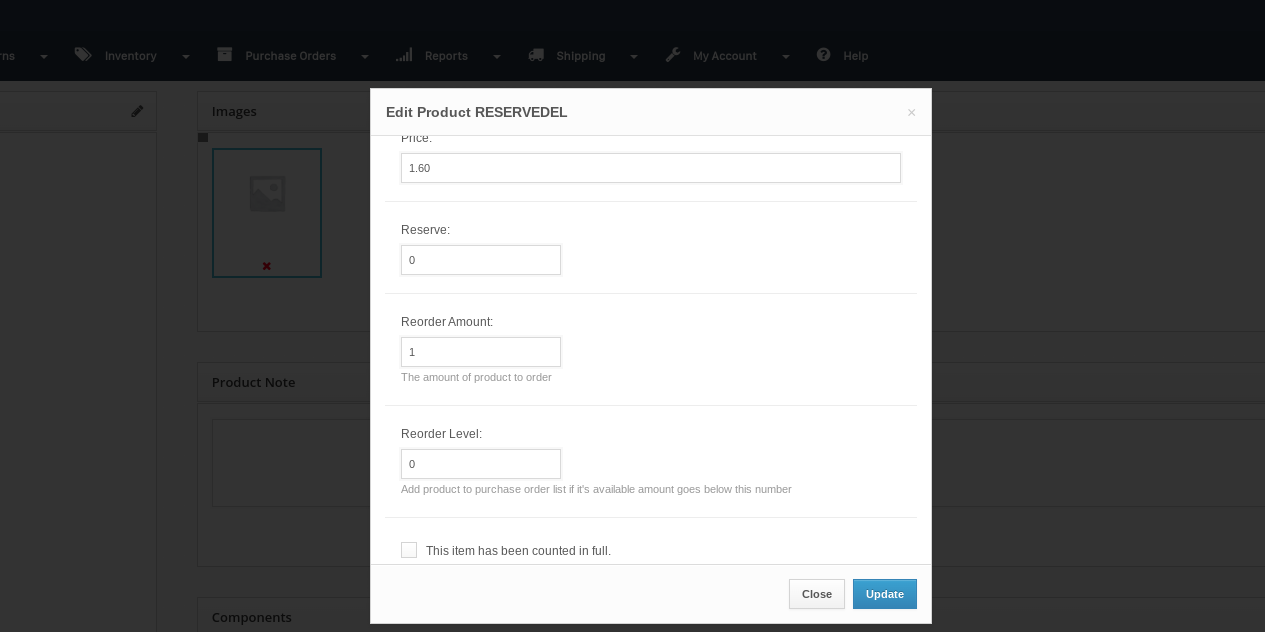
- Select the product you want to stop reordering and select Edit (the small pencil on the top right in the left box).
- Under Reorder Amount, input "0"
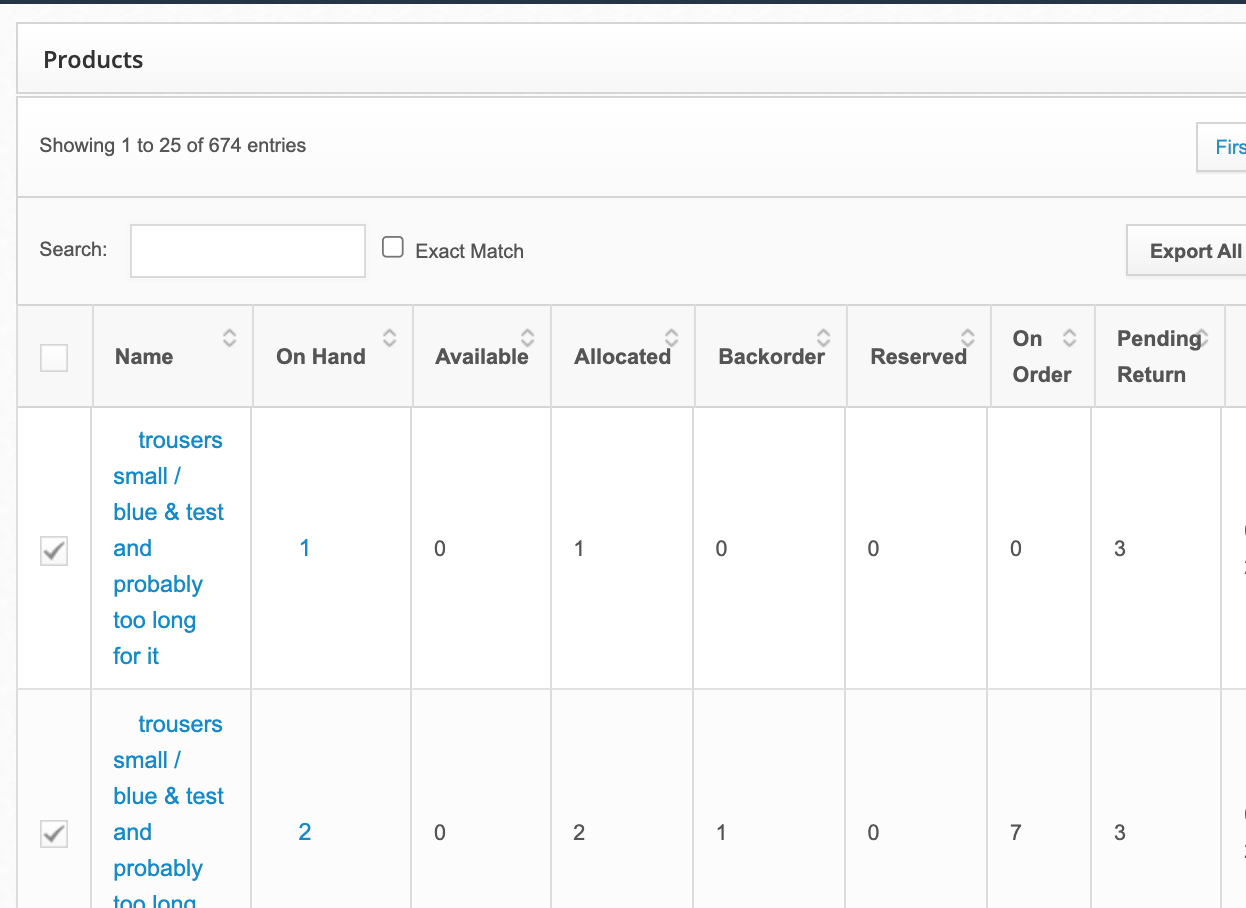
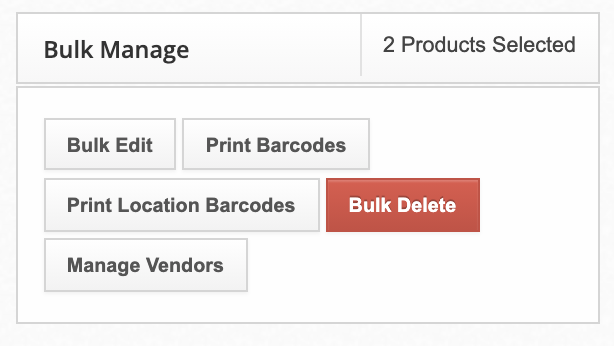
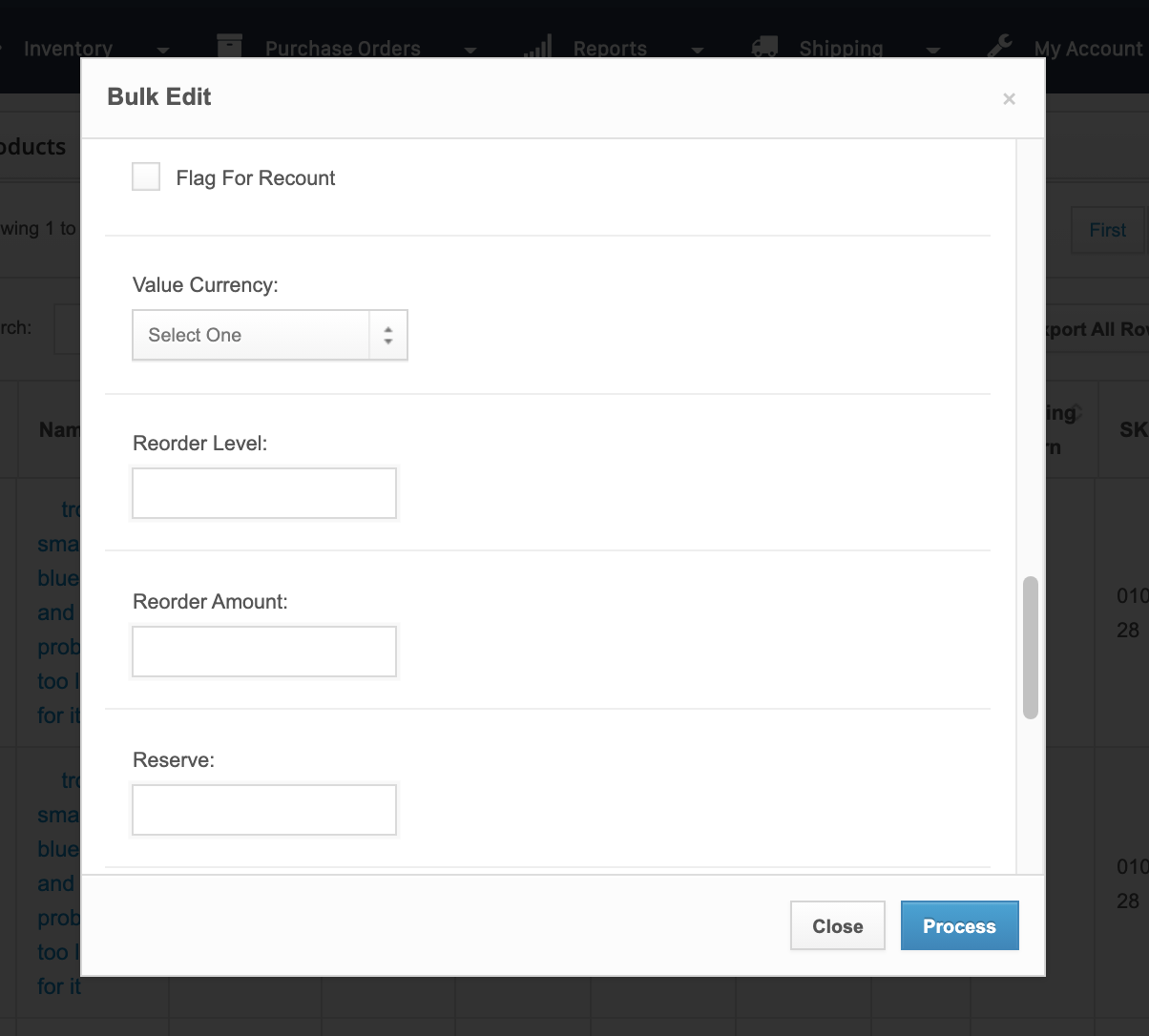
This can also be done in bulk. Users can upload a CSV using the Product Bulk Edit feature. You can also navigate to Inventory > Products and select as many products as you want before clicking Bulk Edit.