Take an adaptive game controller, a few extra buttons, and a packing station, and what do you get? Tripled packing efficiency in your warehouse!
Introduction
Handheld barcode scanners revolutionized warehouse picking and packing — reducing errors, improving quality assurance, and saving time.
However, there is still a lag between picking up the scanner, scanning the barcode, and putting it back down, especially during the critical packing phase. Even one or two seconds per order adds up significantly across your entire operation.
The solution came from the gaming community. Xbox® released an adaptive game controller designed for gamers with limited mobility, and we discovered it could be repurposed for packing stations at ShipHero. Combined with a Logitech® button kit and open-source software, the result is a faster, more ergonomic packing workflow.
If you're a current ShipHero WMS client, you can adapt your packing stations to use game controller buttons by following the steps below.
Setting Up an Adaptive Packing Station
Step 1: Gather Hardware
Each packing station requires the following hardware:
This hardware can be purchased directly from Microsoft or from retailers such as Best Buy. Prices are typically the same.
The Xbox Adaptive Controller is the core component, featuring two oversized buttons that can withstand constant heavy use and ports for up to 15 additional input sources. The Logitech kit provides 10 more buttons that can be placed wherever needed around the packing station.
While we recommend buttons from the Logitech Adaptive Gaming Kit for their price and guaranteed compatibility, any robust microswitch wired to a 3.5mm mono jack will work. 3.5mm jack plugs are required to connect to the Xbox Adaptive Controller.
Optionally, you may also need:
- 3.5mm male to female mono extension cables (various lengths available)
Extension cables provide the range needed to place buttons in convenient locations around the station.
We recommend "slim" cable plugs because the input sockets on the Adaptive Controller are spaced close together. If the cable ends are too wide, there may not be enough room to plug them in side by side.
Step 2: Configure Packing Station Hardware
By wiring a packing station with Adaptive Controller buttons, packers can instruct ShipHero's WMS to print a label/invoice or complete an order with the press of a button.
This system uses packaging size as the main differentiator. Once a package type is entered — with a button press rather than a handheld scanner — ShipHero's WMS knows what to do.
There are 17 buttons that can be programmed with different input codes. Two must be assigned to the core functions above (print label/invoice and complete order). The remaining 15 can be assigned as needed.
Here is an example of an adaptive packing station wired with additional buttons:
The top row of five buttons allows a packer to input box size:
The bottom row of five buttons inputs the bag size:
All buttons are wired to the Adaptive Controller using 3.5mm extension cords:
Notice that the cord ends are labeled with the button they connect to, reducing confusion.
Here you can see the adaptive packing station in action:
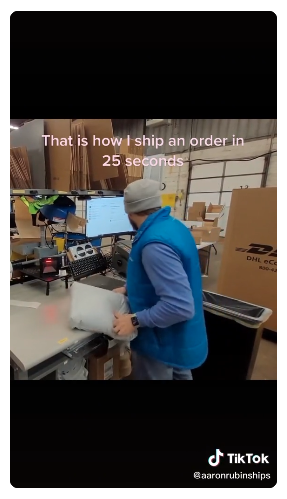
Watch Aaron Rubin pack an order in 25 seconds
The number of peripheral buttons will vary depending on your needs. If you have multiple adaptive packing stations, each should use an identical layout and number of buttons — this ensures consistent configuration and simplifies troubleshooting.
Step 3: System Setup
Each packing station must run a Windows operating system. On each Windows machine, download the following software:
AntiMicro is a free, open-source program that lets you assign custom input to gamepad buttons. To install, download the installer from SourceForge, navigate to the download directory, and double-click the installer file. Administrator permission may be required to approve the installation.
After running the installer, a new desktop icon for AntiMicro will appear.
If you cannot use AntiMicro, reWASD for Windows is an alternative that can be downloaded and configured in much the same way.
Next, configure Windows to allow use of all gamepad buttons. Navigate to Windows settings and select Gaming.
Ensure that the Xbox Game Bar is switched Off and that the option Open Xbox Game Bar is unchecked:
This allows you to map new input to one additional button on the gamepad.
While this setup is only tested on Windows OS, the Adaptive Controller hardware should function equally well on macOS. However, using a different OS requires finding and configuring your own gamepad interpolation software.
Step 4: Configure Software
Setting up the software profile is the most complex step, but you only need to complete a full configuration once. After creating a correctly configured profile on one packing station, you can copy the file to every other station using the same hardware setup.
Define Input Codes
Before programming AntiMicro, you need to know the input values that allow the gamepad to communicate with ShipHero.
ShipHero expects two types of input at a packing station:
- Command codes: These instruct the software to perform a specific function. Command codes are the same in every warehouse.
- Packaging types: These are labels for the types of packing materials used at a station. Packaging types are unique to each warehouse.
Common command codes are listed below:
- Print Labels: sh0002
- Print Invoice: sh0001
- Print Invoice & Label: sh0003
- Get Weight from Scale: sh0005
- Add Package: sh0010
- Take Parcelview: sh0009
- Complete Order: sh0004
Your warehouse may already use ShipHero's standard barcode commands cheat sheet. You can view it here.
When scanned by a barcode reader, these barcodes are translated into command codes that ShipHero can understand. To find a code, open a text document in Notepad or another text editor and scan a barcode with your scanner. A series of letters and numbers will appear in the document corresponding to that barcode. For example, scanning the "Print Labels" barcode from the cheat sheet will produce "sh0002".
Packaging types can also be determined using a predefined barcode, a handheld scanner, and an open text document. However, your warehouse may not assign barcodes to every package type. To view a complete list of packaging types for your warehouse, go to Shipping > Boxes in ShipHero. You will need the codes for every category of packaging used at your station. Learn more about setting up shipping boxes and assigning barcodes.
Run AntiMicro
Once you have a complete list of command codes and packaging types, you are ready to use AntiMicro.
Double-click the AntiMicro icon on your desktop to launch the program. The window should look like this:
If AntiMicro cannot detect a gamepad, the screen will appear as follows:
This blank screen indicates a problem with the Adaptive Controller connection. Check your hardware configuration for issues.
Key Mapping
Once AntiMicro is running and has detected the Adaptive Controller, you can begin assigning input.
We recommend using the A (left side) and B (right side) buttons on the Adaptive Controller to input command codes. Specifically, use the A button as a multipurpose process-advancing trigger and the B button to complete an order — assigning a dedicated "complete order" button reduces the chance of mistakes. Use the peripheral buttons to input packaging types.
The steps below show how to assign input to both the A and B buttons.
From the AntiMicro main screen, use the mouse to select the A button. This corresponds to the left large button on the Adaptive Controller.
You can verify your button layout by pressing any button connected to the controller. AntiMicro will highlight that button on the main screen.
This opens the key assignment window. Use the Name field at the bottom to create a descriptive name for the button. The Current field will show "[NO KEY]" until an action is defined.
After naming the button, select Advanced. In the example below, the name is "Print LabelInv Photo" because the A button will take a photograph using ParcelView, then print the invoice and label.
The advanced keymapping settings let you define a sequence of actions for a single button press. For the A button, a single press will trigger five actions:
- Input the Take Parcelview command to photograph the package using ParcelView
- Input the ENTER key
- Pause for half a second to ensure ShipHero is ready for the next command
- Input the Print Invoice & Label command
- Input the ENTER key again
Create each action in sequential order. For the first action, enter the command code for Take Parcelview. From the cheat sheet, this code is "sh0009". Select the first tile at the top of the window by clicking outside the small blank rectangle to highlight it in blue:
Use the central dropdown menu to select Text Entry, then input "sh0009" in the text field. Click Insert when finished.
For the second action, assign an ENTER key input. Select the second tile by clicking inside the small blank rectangle until it shows three dots:
Now press the ENTER key:
The second action is now defined.
For the third action, assign a half-second pause. Select the third tile by clicking outside the inner rectangle to highlight it in blue:
Use the central dropdown menu to select Pause, then use the small dropdown at the bottom of the window to set the duration to 0.5 seconds:
Click Insert. The third tile should now read "Pause 00.50":
For the fourth action, input another command code. The code for Print Invoice & Label is "sh0003". Select the fourth tile by clicking outside the inner rectangle to highlight it in blue. Choose Text Entry from the dropdown and input "sh0003". Click Insert when finished.
For the fifth action, assign another ENTER key input. Select the fifth tile by clicking inside the small rectangle until it displays three dots:
Press the ENTER key:
All five actions are now assigned to the A button. Close the Advanced window and the Key Assignment window to return to the main menu.
From the AntiMicro main menu, select the B button. This corresponds to the right large button on the Adaptive Controller.
Name the button "Complete Order" before opening the Advanced window:
The B button will trigger two actions on a single press:
- Input the Complete Order command
- Input the ENTER key
The command code for Complete Order is "sh0004". Select the first tile by clicking outside the small blank rectangle:
Choose Text Entry from the dropdown and input "sh0004". Click Insert when finished.
Next, select the second tile by clicking inside the small rectangle until it displays three dots:
Press the ENTER key:
Two input actions are now mapped to the B button.
Assigning input to peripheral buttons will depend on how many packaging types you use and which port each button is connected to on the Adaptive Controller.
The example below shows a completed key mapping for an adaptive packing station:
Packer notes: To dismiss a packer note, click OK with a mouse or scan the next item. The OK control on the Adaptive Controller does not dismiss the note. At a station without a mouse, the note can look stuck until the packer scans the next item.
Change Program Settings
After assigning functions to all buttons, select Save As from the main menu and name your profile. Save the file to your local machine so it can be loaded every time the program starts.
It is also important to configure AntiMicro to autoload this profile and prevent packers from accidentally closing the program.
Select Options > Settings.
In the left-hand menu, navigate to General and check the boxes next to Close To Tray, Launch At Windows Startup, Auto Load Last Opened Profile, Launch in Tray, and Associate Profiles.
With these settings, AntiMicro will start when the system boots, load your customized input automatically, and continue running in the background. Closing to the tray also reduces the chance of the program being accidentally deactivated while the station is in use.
Packing station users will not need to interact with AntiMicro at all — it runs entirely in the background.
Troubleshooting
When I try to open AntiMicro, the program window never appears.
If AntiMicro is set to Launch in Tray, use the tray icon to display the program window. In the bottom right corner of your desktop, select the small arrow to show hidden tray icons, then click the gamepad icon to open AntiMicro.
When I press a button on the Adaptive Controller, it doesn't work as expected or doesn't work at all.
Open a Notepad text document and press a button on the Adaptive Controller. A text string corresponding to the assigned input should appear. Double-check that the assigned strings are correct. If no text appears, there may be a hardware connection problem.
Step 5: Copy Software to Packing Stations
After configuring the AntiMicro profile on one packing station, you can copy that profile to every other station using the same button configuration.
Profiles are saved as AMGP files. Copy the profile to a USB thumb drive, then save the AMGP file on the next workstation.
Once saved, open AntiMicro on the new machine, select Load, and open the local file. Then navigate to Options > Settings and check the same boxes as on the first machine.
Repeat this process for every adaptive packing station using the same layout.
You can use AntiMicro to support different packing station hardware layouts as long as each layout loads a different AMGP profile. However, this requires extra attention to file version management and increases overall configuration time.
Conclusion
The cost to make this upgrade is minimal — typically less than a socket mobile scanner, which is what most clients use in their warehouses. The one caveat is that, like many electronics, adaptive controllers and button kits can occasionally be hard to source. If you're outfitting multiple stations, you may need to do it in waves.
For more information about adaptive packing stations, check out this blog post or reach out to the Client Support Team.